


Why Can’t Your Applications Run on Windows 11?
The challenge many application packagers are currently facing is how to get 16-bit or 32-bit applications to run on Windows 11. In this blog, we will detail how to package ArcView GIS 3.0, a legacy application with a 16-bit installer for the deployment of a 32-bit application, to Windows 11.
Legacy Applications Fail to Launch on Windows 11
Attempting to traditionally install ArcView GIS 3.0 on Windows 10 64-bit yields the following notification:
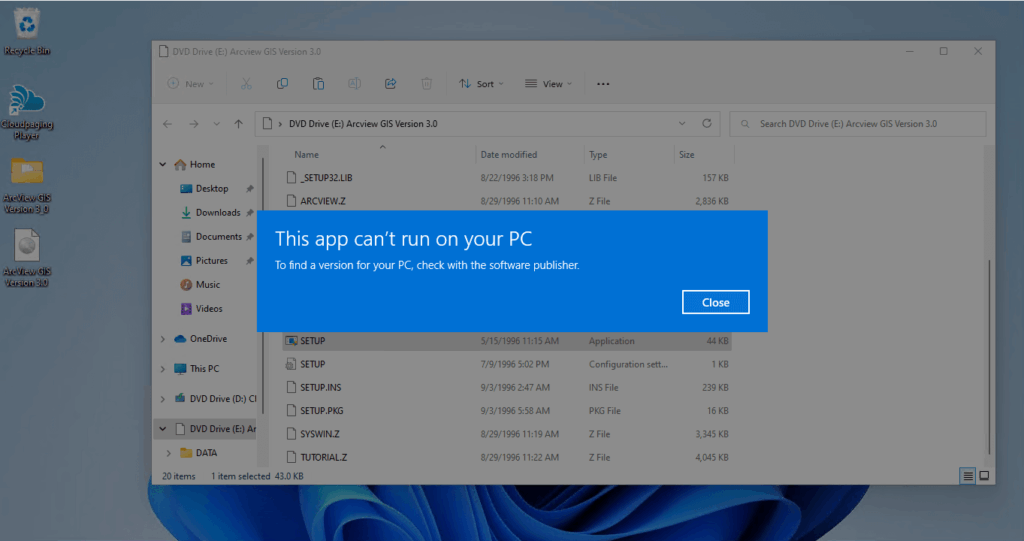
Packaging Legacy Installer Applications for Windows 11 with Cloudpaging®
To get around this limitation we will use Cloudpaging to package and deliver ArcView GIS 3.0 to a 64-bit OS as follows:
1. Copy the extracted installer to a Windows 32-bit capture machine. We recommend doing so on a clean machine for each net-new application package.
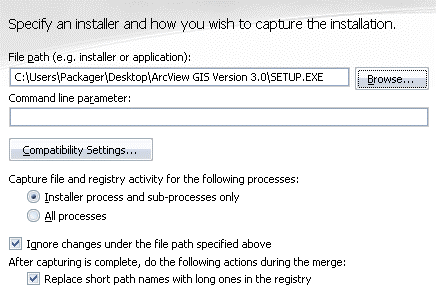
2. Use Cloudpaging Studio to capture the installation of ArcView GIS 3.0.
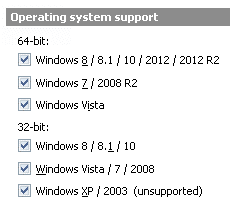
3. In Operating system support, select your desired target OS.
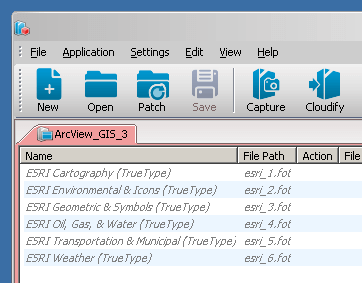
4. In the Fonts tab, exclude all legacy .fot fonts.
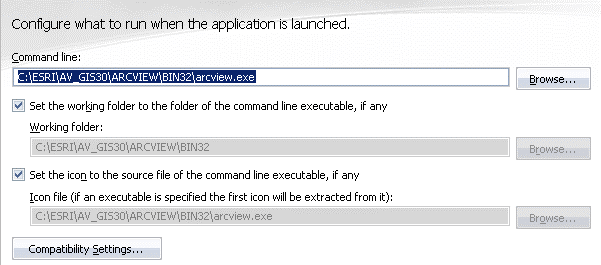
5. Set C:ESRIAV_GIS30ARCVIEWBIN32arcview.exe as the command line.
6. OPTIONAL: Capture prefetch, which determines the “pages” to prioritize to accelerate application launches.
To complete the packaging process, select Cloudify.
Deploying Legacy Applications to Windows 11
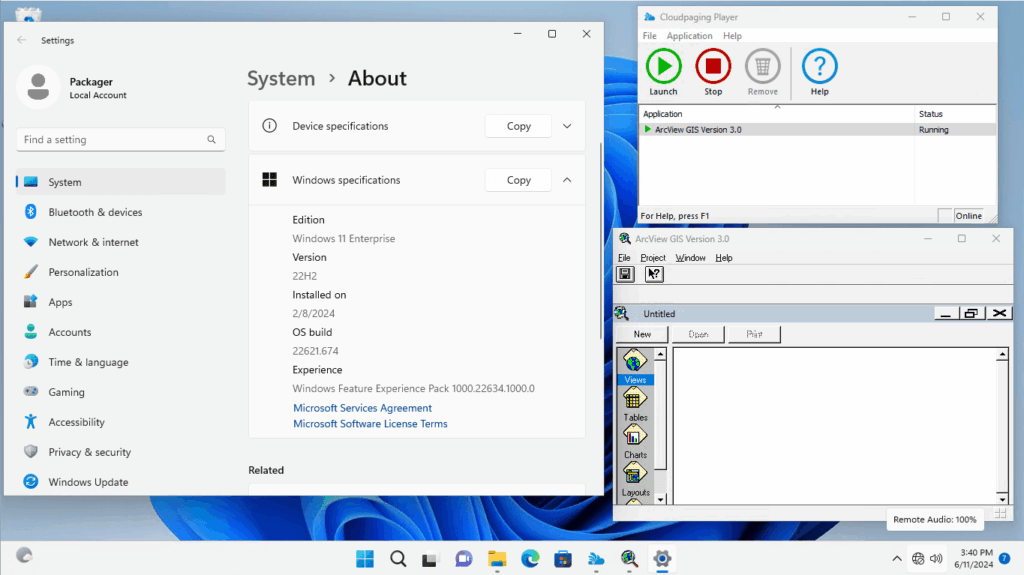
The final step of the process is to deploy – or as we like to say, “Cloudpage” – the application to a Windows 64-bit OS. This requires Cloudpaging Player to be installed on the end user desktop. This is the agent responsible for virtualizing Cloudpaging containers onto the desktop. To visualize this, we have it running on the end user desktop. However, you can have this run in headless mode so end users have a native application experience.
Reuse Cloudpaging Containers Across Physical and Virtual Desktops
The beauty of Cloudpaging is application containers can be reused across all modern Windows OS. You read that right! If you package an application and it deploys to Windows 11, you don’t have to repackage it for Windows 365, Azure Virtual Desktop, Citrix, Amazon WorkSpaces, VMware, etc.
Package once, deploy anywhere, regardless of where end users reside.
Speak to an Expert
Have legacy applications you need to package for Windows 11? Contact us in the form below and we’d love to help you figure out how.


