
Opens in a new tab
WEBINAR
Streamlining Citrix Application Management
Request a Demo
post
installer
Legacy Apps

How Do I Package Legacy Installer Applications?

Rory Monaghan
Senior Technologist
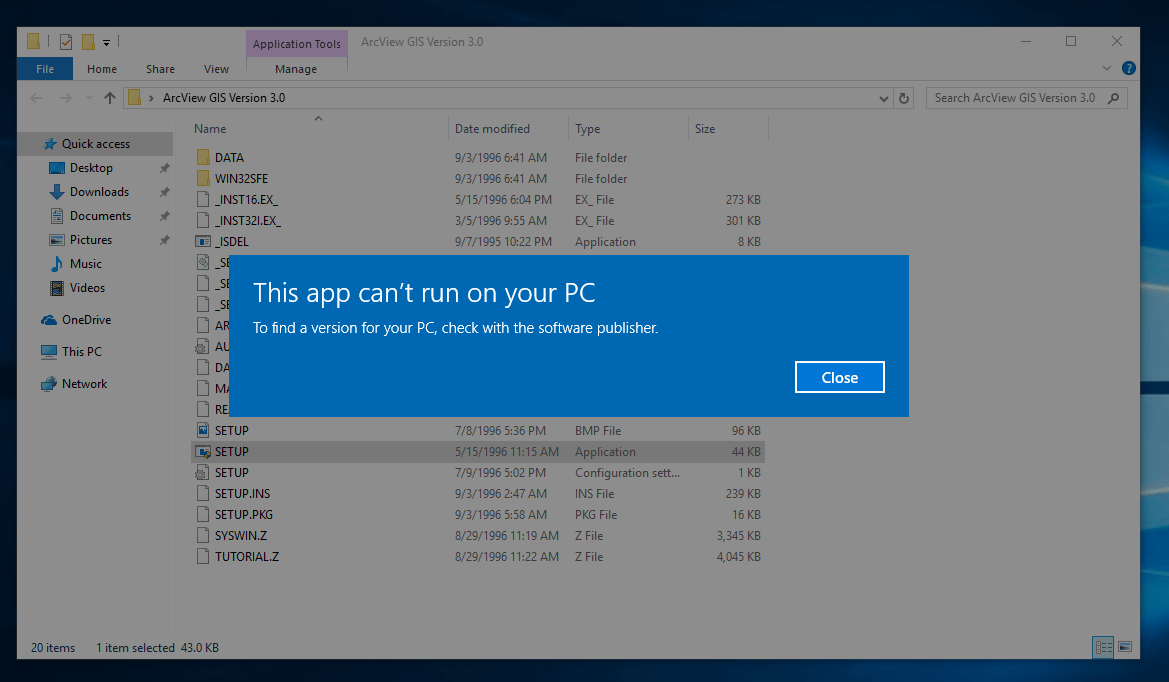
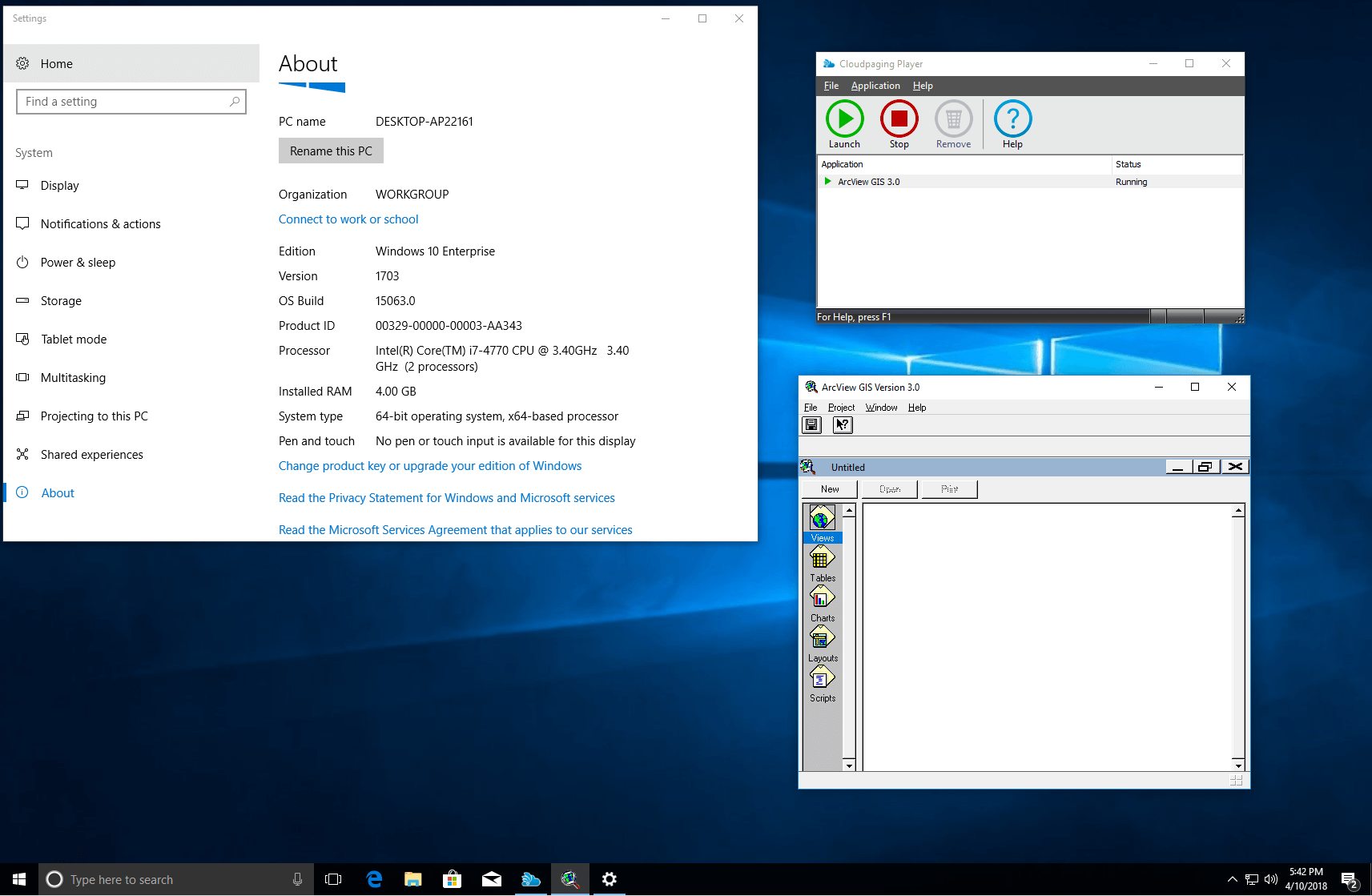
Note: This solution details how to deliver a legacy application to Windows 64-bit, using ArcView GIS as an example. This works because ArcView GIS 3.0 uses a 16-bit installer to deploy the 32-bit application. Installing ArcView GIS on Windows 10 64-bit displays the following notification: To get around this limitation we will use Cloudpaging to package and deliver ArcView GIS to a 64-bit OS as follows:
  1. Copy the extracted installer (link below) to a Windows 32-bit capture machine.
  2. Use Studio to capture the installation.
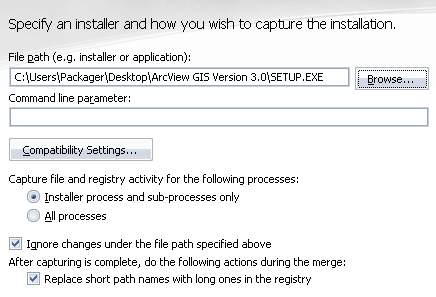
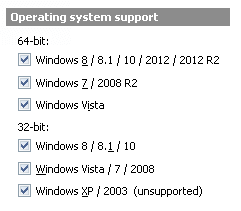
  3. In Operating system support, select the desired target OS’s.
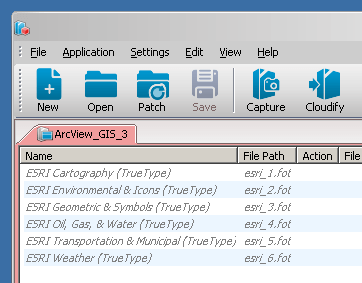
  4.  In the fonts tab, exclude all legacy .fot fonts.
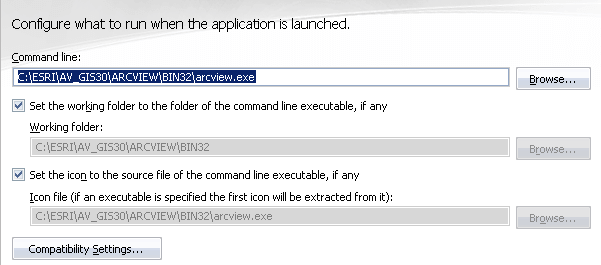
  5. Set C:ESRIAV_GIS30ARCVIEWBIN32arcview.exe as the command line.
  6. Optionally capture prefetch and then “cloudify” the application.
  7. Cloudpage the application to a Windows 64-bit OS:
On this page
Share
Stay in the loop
Get the next Numecent post in your inbox — no more than twice a month.
Rory Monaghan
Senior Technologist
Rory has spent his career at the intersection of end-user computing, application delivery, and the Microsoft ecosystem — from packaging shops in Dublin to enterprise architecture in Silicon Valley. He writes about what actually breaks in the wild, and what to do about it.

Related reading

All posts
post
Jun 04, 2026

Why Application Packaging is Still a Challenge for IT

Application packaging has been part of enterprise IT for decades. Yet it remains one of…

Learn more
post
May 28, 2026

Deploy Legacy Apps to the Latest Citrix Desktops

For many years, Citrix customers have used Citrix Session Hosts as a solution for legacy…

Learn more
post
May 07, 2026

Stop Repackaging, Start Moving: Maximize Application Portability with Containerization

The dream of “write once, run anywhere” has been a long-standing goal in the world…

Learn more